WindowsMacFree to start

No server. No account. Your phone and PC share the same music over Wi-Fi.

A music player that keeps songs, playlists and play counts in step by letting your devices talk to each other directly. Album art turns into a spinning record.

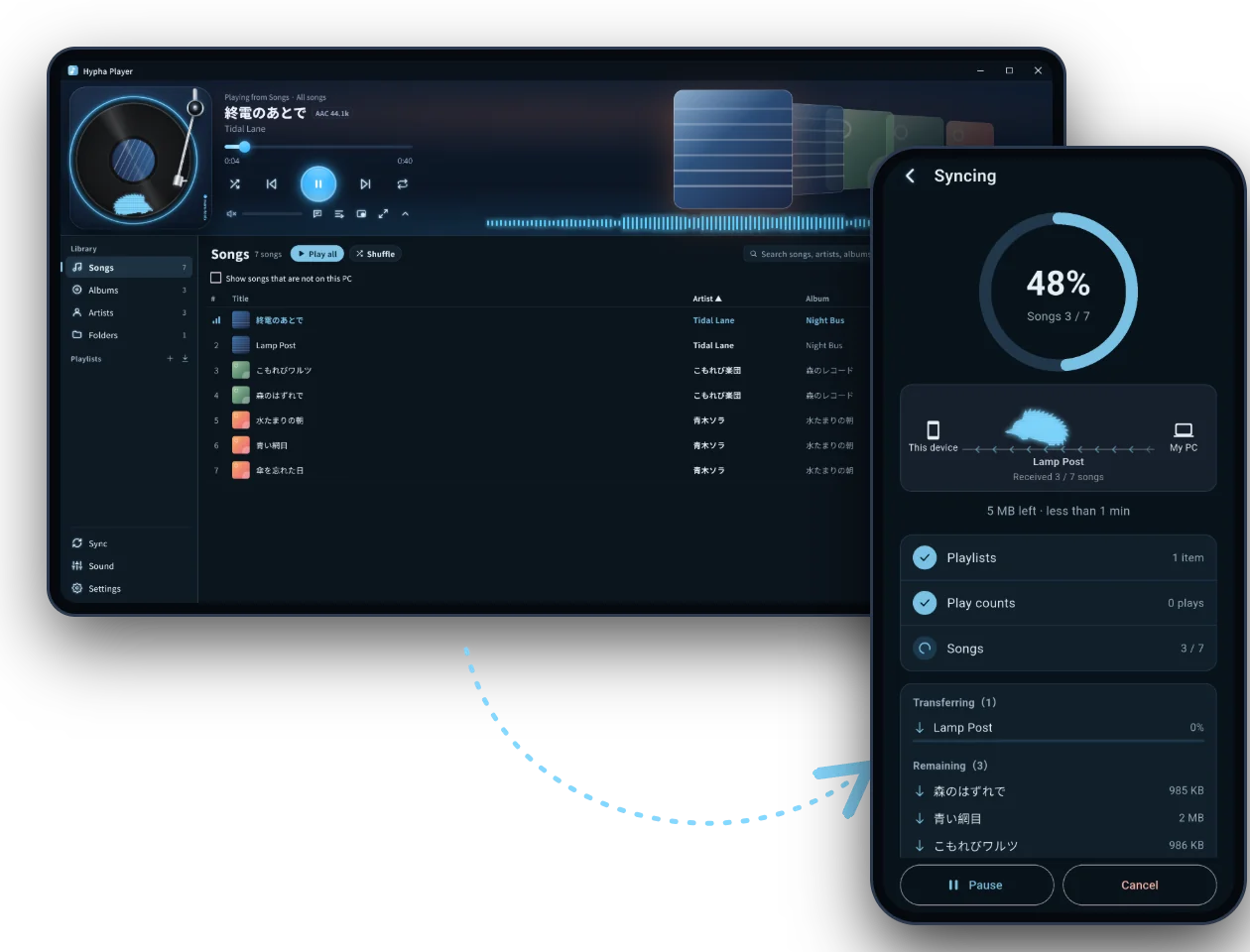
Hypha Player on a PC, and a phone in the middle of syncing

Sync between your own devices

Your phone and PC talk to each other directly on the same Wi-Fi. No server, no account. Songs, playlists (name, contents and order) and play counts stay in step.

Server on the internetNot usedSame Wi-Fi PhonePhonePhonePCPCPCFree

Diagram: on the same Wi-Fi, two phones, a phone and a PC, and two PCs talk to each other directly. No server on the internet is used.

Same Wi-Fi

Phone ↔ Phone (Paid: Sync)

  • Keep two phones in step, no PC needed
  • Pair by scanning the "This device's QR code" shown on the other phone
  • Both phones need the Sync or Bundle purchase

Phone ↔ PC (Paid: Sync)

  • Pair by scanning the PC's QR code with your phone, or by pasting the PC's invite link on your phone
  • The phone needs the Sync or Bundle purchase
  • The PC version is free

PC ↔ PC (Free)

  • Pair with a QR code or an invite link
  • No purchase needed
  • A setting decides whether song files from the other PC are kept too

On this page, "phone" means iPhone and Android, and "PC" means Windows and Mac.

The sync screen

Sync screen on the PC (QR code and invite link)
Invite link pasted, showing the 6-digit code

Pair with a QR code or an invite link

Pair your devices once. Scan the PC's QR code with your phone camera, or paste the PC's invite link on your phone.

  • With an invite link, enter the 6-digit code shown on the phone into the PC
  • Between phones, scan the "This device's QR code" shown on the other phone
Choosing what to sync (whole library, playlists, folders)

Choose what to sync

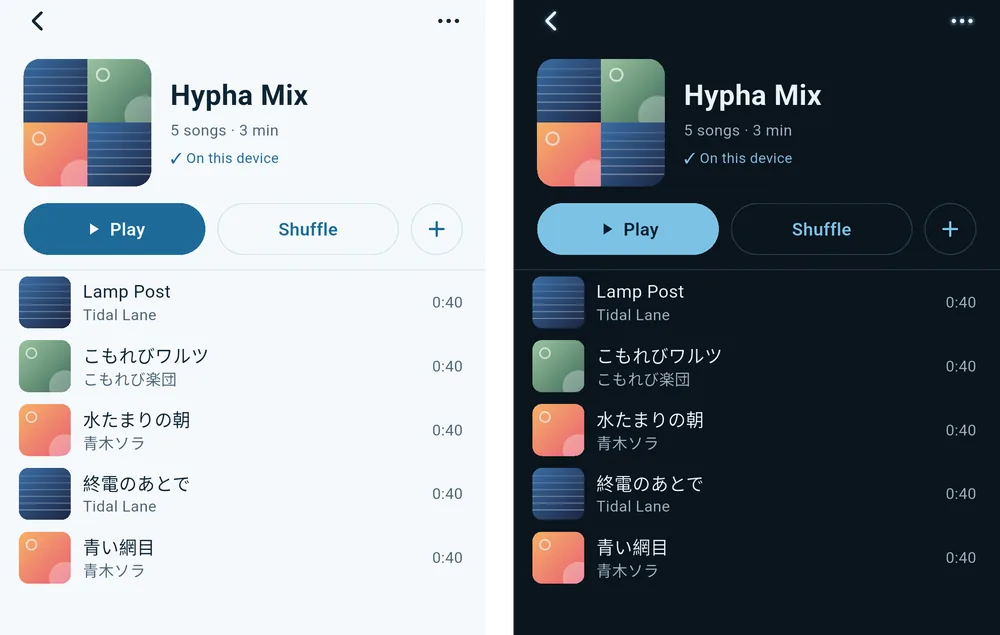
Pick songs and playlists by song, playlist or folder, or tap "Sync all". You see the free space on the phone and how much will be sent.

  • Folders appear as a tree, just as you keep them
  • On the PC, choose separately for each paired device
Hypha Player on a PC, and a phone in the middle of syncing

Finds your paired devices and syncs

Hypha Player finds your paired devices on the same Wi-Fi and syncs. The phone syncs when you tap a sync button (such as "Sync now"), and when you open or return to the app with "Sync automatically on launch" turned on. Syncing between a phone and a PC is always started by the phone.

  • While the app is running, paired PCs sync with each other automatically
  • Two phones sync automatically only when both are ready to sync ("Sync automatically on launch" is on, or "Ready to sync" is pressed)
Pause and cancel here
Sync progress with pause and cancel

Watch the progress, and pause

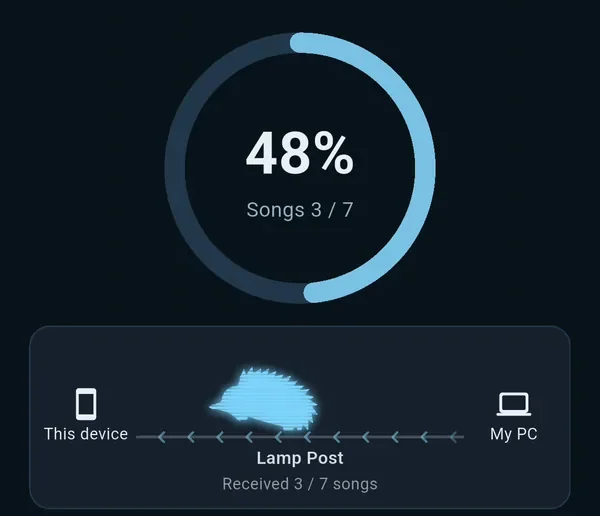
See which song is being sent and how far along it is. Pause at any time; on the phone you can also cancel. The next sync picks up where it stopped.

  • An animal carries your songs along the road (no Skin needed)
  • If you turn the screen off during a sync, the transfer already under way keeps going (no new sync starts after the screen is off)
  • With reduced motion on, it is a still picture

⚠ Before you delete songs

  • Deleting a song on the PC removes it from every paired device.
  • To remove a song from the phone only, use "Stop syncing" on the phone (it stays on the PC).
  • For songs removed on other devices, the phone lets you choose to delete or keep them.
  • The original files of songs you added to the phone yourself are not deleted.
  • Before you retire a phone or PC, unpair it first.

Getting started

  1. Install Hypha Player on your PC and choose your music folder
  2. Buy Sync or Bundle on your phone and pair it with your PC
  3. Choose what to sync, then sync

Read the user guide

What you need to sync

  1. Hypha Player on both devices
  2. Phone and PC: Sync or Bundle on the phone. Two phones: on both. Between PCs: nothing to buy
  3. Both devices on the same Wi-Fi (the same network)
  4. On the PC, Hypha Player running and the PC not asleep

ⓘ On public Wi-Fi, devices may not be able to reach each other.

When it helps

Sync makes these moments easier.

Songs back on the new phone

Moving to a new phone

Songs, playlists and play counts you synced with your PC come back when you pair the new phone.

What to do

  1. Sync the old phone one last time
  2. Install Hypha Player on the new phone and pair it with your PC
  3. Choose what to sync (mind the free space on the new phone)
  4. On the PC, unpair the old phone
  • You can restore the Sync purchase with the same account on the same store. It does not carry over between stores.
  • Not restored: songs never synced, changes after the last sync, and app settings (colors, animal and so on).
PC setting "Also keep the other PC's songs on this PC"
PC ↔ PC · Free

Replacing your PC

Pair the new PC and choose to keep the other PC's songs on it too, and the song files move over as well.

What to do

  1. Open Hypha Player on both PCs and pair them with a QR code or an invite link
  2. On the screen shown after pairing, choose to keep the other PC's songs on the new PC too
  3. When they sync, the song files arrive on the new PC
  • You can change this later with the setting "Also keep the other PC's songs on this PC". Songs added on a phone are kept on both PCs either way.
  • Before you retire the old PC, unpair it first. Deleting songs while it is still paired removes them from the new PC too.
The same playlist on two phones

Two phones

Keep the same songs and playlists on two phones, say one for work and one for personal use. No PC needed.

What to do

  1. Install Hypha Player on both phones and buy Sync or Bundle on each
  2. Scan the "This device's QR code" on one phone with the other to pair
  3. Press "Ready to sync" on both and sync starts
  • If "Sync automatically on launch" is on for both phones, sync starts just by opening the app.
Choosing "Stop syncing" for a song on the phone

Saving space on your phone

Everything on the PC, just what you listen to on the phone.

What to do

  1. Choose what to sync, on the PC or on the phone
  2. On the phone, "Stop syncing" songs you no longer need (they leave the phone and stay on the PC)
  3. To get one back, choose it again (it arrives at the next sync)
The spinning record

Album art, on a spinning record

A record with the album art as its label spins on the turntable. Spin it with your finger to fast-forward or rewind. Four turntables plus no player, in dark and light.

  • A ring of light glows around the turntable (you can turn it off)
  • Dark and light themes
  • In Android Battery Saver, the glow is toned down and there is less motion

Ultra HDR that really glows

Free

On an HDR screen, the glow ring, artwork, meter, lamps, display and seek bar shine with Ultra HDR brightness. They come out brighter than ordinary white, so the turntable on your screen really looks lit up. Choose Off, Low or High (High by default).

Android 14 or later, on devices with an HDR screen only. The pictures on this page are not HDR, so see the glow on your own device.

  • The Standard turntable
    Standard

    The basic turntable

  • The Modern turntable
    Modern

    A clean, simple shape

  • The Wood turntable
    Wood

    A wooden body

  • The DJ turntable
    DJ

    Like DJ gear

  • The no-player view
    No player

    A ring that moves with the music, in place of a turntable

Change the colors

Body color

Free

Each turntable has its own body colors to choose from. The pictures below show the nine body colors of Modern.

  • Standard7 body colors
  • Modern9 body colors, 3 display colors
  • Wood7 colors
  • DJ3 finishes
  • No playerNo color choices
  • Modern body color: Sky
    Sky
  • Modern body color: Green
    Green
  • Modern body color: Yellow
    Yellow
  • Modern body color: Orange
    Orange
  • Modern body color: Red
    Red
  • Modern body color: Pink
    Pink
  • Modern body color: Purple
    Purple
  • Modern body color: White
    White
  • Modern body color: Black
    Black

Light and button colors

Change the color of the glowing ring and the buttons. The pictures below show Standard in different colors. Turning the light on or off is free.

  • Light and button color (Skin): Light blue
    Light blue
  • Light and button color (Skin): Green
    Green
  • Light and button color (Skin): Orange
    Orange
  • Light and button color (Skin): Pink
    Pink

Running animals

An animal runs along with the music: around the rim of the record on the phone, and across the screen on the PC too. Choose from eight. It nods its head and wags its tail to the beat.

Animal

Move

Do

The same rig as the app, running right on this page. Tap the animal to make it jump. In the app it runs, walks or sits along with the music, and now and then jumps or does a trick.

Where they run

Phone: around the rim of the record
PC: across the band at the top of the window

More details

10-band equalizer and presets
GaplessSleep timer
Gapless playback and sleep timer

Make it sound your way

A 10-band equalizer with preamp and presets. All sound features are free.

  • Gapless playback with no silence between tracks
  • Sleep timer that stops after a set time or at the end of the song
  • Plays MP3, AAC and FLAC, and can also play WAV, OGG and Opus
Timed lyrics following along

Lyrics

Shows lyrics from a .lrc file next to the song or lyrics embedded in the song. Timed lyrics follow along line by line.

  • Lyrics are never fetched from the internet
Mini player
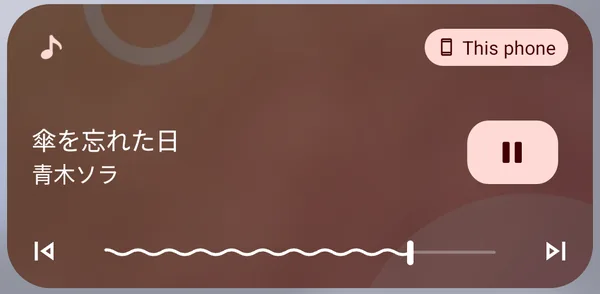
Mini player over another app (Android)
Controls in the notification
Mini window on the PC

While you use other apps

On Android, a small mini player floats over other apps (six designs). On iPhone, a Picture in Picture mini player (six designs). On Windows and Mac, a mini record window. Control playback from the notification, the lock screen and earphone buttons too.

  • On Windows it stays in the notification area. A setting can open it when you sign in ("Open when Windows starts"; it starts in the notification area only)
  • On Mac it stays in the menu bar. A setting can open it when you log in (with the window closed, it can still receive syncs in the background)
Albums
Folder tree

Library and playlists

Browse by song, album, artist or folder. Folders appear as a tree, just as you keep them.

  • Make playlists and import m3u8
  • On iPhone, add songs with "Add from Music", or save them to "On My iPhone > Hypha" in the Files app
  • No music yet? Try our own seven sample songs (Android 10 or later)
  • Japanese and English

Free and paid

On the phone, every player feature is free. Add Skin ($4.99) for looks and Sync ($4.99) only if you want them, as one-time purchases, or get both as the Bundle ($7.99). Any purchase removes the ads. The PC versions (Windows and Mac) have every feature for free.

FreeSkin $4.99Sync $4.99Bundle $7.99
Playback, equalizer, lyrics and mini player○○○○
Spinning record (four turntables, dark and light, body colors, light on or off)○○○○
Light and button colors✕○✕○
Running animals✕○✕○
Sync with your PC or another phone✕✕○○
Sync automatically on launch✕✕○○
No ads (Free shows a banner at the bottom of the library)✕○○○

To sync a phone with a PC, buy Sync or Bundle on the phone. To sync two phones, buy it on both. Syncing between PCs needs no purchase. All are one-time purchases with no monthly fees. Prices are in US dollars; in other countries they are converted automatically.

Devices and how to get it

Works on Windows, Mac, iPhone and Android. The PC versions, Windows and Mac, are free.

Windows

Windows 10 (2004 or later) and Windows 11

  • Get it free from the Microsoft Store
  • A mini record window, and it stays in the notification area
  • Every feature is free, with no ads
  • To sync with a phone, buy Sync or Bundle on the phone
Download from the Microsoft Store

Microsoft Store · Free

How to install

  1. On the Hypha Player page in the Microsoft Store, click Install
  2. Open Hypha Player from the Start menu
  3. Choose your music folder

Mac

macOS 12 or later (Apple silicon and Intel)

  • Get it free from this page (.dmg)
  • A mini record window, and it stays in the menu bar
  • Every feature is free, with no ads
  • To sync with a phone, buy Sync or Bundle on the phone

.dmg · about 45 MB · version 1.1.0 · Free

How to install

  1. Open the downloaded .dmg
  2. Drag Hypha Player into the Applications folder
  3. Open Hypha Player from Applications (if a confirmation appears the first time, click Open)

iPhone

iOS 15 or later

  • Songs come in with "Add from Music", or from the Files app ("On My iPhone > Hypha")
  • The mini player shows in Picture in Picture (six designs)
  • Buy paid features on the App Store
  • Sync transfers keep going in the background while music is playing
  • On an HDR screen, it glows in HDR (iOS 17 or later)
  • No music yet? Try our own seven sample songs
The library screen on iPhoneThe now playing screen on iPhone

Android

Android 7.0 or later

  • Songs already on your phone appear in the list as they are
  • The mini player floats over other apps (six designs)
  • Buy paid features on Google Play
  • Sync transfers keep going in the background, even with the screen off
  • On an HDR screen, it glows in Ultra HDR (Android 14 or later)
  • No music yet? Try our own seven sample songs (Android 10 or later)
The library screen on AndroidThe now playing screen on Android

About the name

A hypha is a single thread of a fungus.

  • Hypha

    One of the fine threads that make up mushrooms and molds. Together they spread through the soil like a net.

  • ♪
    Player

    Something that plays your music. Here, a record with your album art as its label spins on a turntable.

Just as hyphae form a net that links distant places, Hypha Player links your phone and your PC through your music.

FAQ

Do I need a server or an account?

No. There is no sign-up or login. Sync happens directly between your devices on the same Wi-Fi.

Do the devices need to be on the same Wi-Fi?

Yes. Sync runs when both are on the same network, such as your home Wi-Fi. It does not sync while you are away. On public Wi-Fi, devices may not be able to reach each other.

Is sync traffic encrypted?

Yes. Traffic between your devices is protected with TLS, the standard way to encrypt a connection. Each device creates its own key and certificate, and the two devices check each other against the certificate they received when they were paired. A device with a different certificate is refused.

Can a device that is not paired connect?

No. Only the certificates of paired devices are trusted, so a connection from an unknown device is cut before any data flows. Pairing needs the one-time secret inside the QR code or invite link, and with an invite link or between PCs, no songs or data are sent until the 6-digit code shown on one device is entered on the other. Other devices on the same Wi-Fi can see only that Hypha is running, with a random device ID and the version (no names, no songs).

Can it tell if a song was damaged or altered on the way?

Yes. Each song travels with its SHA-256 hash, a fingerprint calculated from its contents, and once the whole file has arrived, the receiving device checks it against the hash and throws it away if they do not match. Lyrics work the same way. If a transfer is cut off, it resumes where it stopped and is checked at the end.

What happens if a security problem (vulnerability) is found in the app?

When a problem is found, we deliver a fixed version through each way the app is distributed (such as the Microsoft Store and automatic updates for the Mac version). The Mac version checks for a new version automatically once a day. If you notice a problem, please let us know through Contact.

Can I use it without a PC?

Yes. On a phone alone, every player feature works (light and button colors and the running animals come with Skin). Syncing two phones needs no PC (both phones need Sync or Bundle).

Which PCs does it run on?

Windows and Mac, both free. Get the Windows version from the Microsoft Store, and download the Mac version under "Devices and how to get it" on this page (macOS 12 or later).

Which formats can it play?

MP3, AAC and FLAC, and it can also play WAV, OGG and Opus. It cannot play copy-protected (DRM) songs or songs from streaming services.

What happens when I delete a song?

Deleting a song on the PC removes it from every paired device. To remove it from the phone only, use "Stop syncing" on the phone (it stays on the PC). For songs removed on other devices, the phone lets you choose to delete or keep them. The original files of songs you added to the phone yourself are not deleted.

Will my songs come back on a new phone?

Songs, playlists and play counts you synced with your PC come back when you pair the new phone. You can restore purchases with the same account on the same store.

Does it sync automatically?

The phone syncs when you tap a sync button (such as "Sync now"), and when you open or return to the app with "Sync automatically on launch" turned on. On the phone, the app never starts syncing in the background on its own. Two phones sync automatically only when both are ready to sync. Syncing between a phone and a PC is always started by the phone. Paired PCs sync with each other automatically while the app is running.

Can I try it without any music?

Yes. Add our own seven sample songs to try it (Android 10 or later).
Read the user guide

Details

Genre
Music player (sync between your devices)
Sync between
Phone to phone, phone to PC, PC to PC
Platforms
Windows, Mac
Price
Phone: free to start (Skin $4.99, Sync $4.99, Bundle $7.99) PC (Windows and Mac): free
Languages
Japanese, English
Developer
maru-games (maru-tools)

Read the privacy policy